How full is my day?
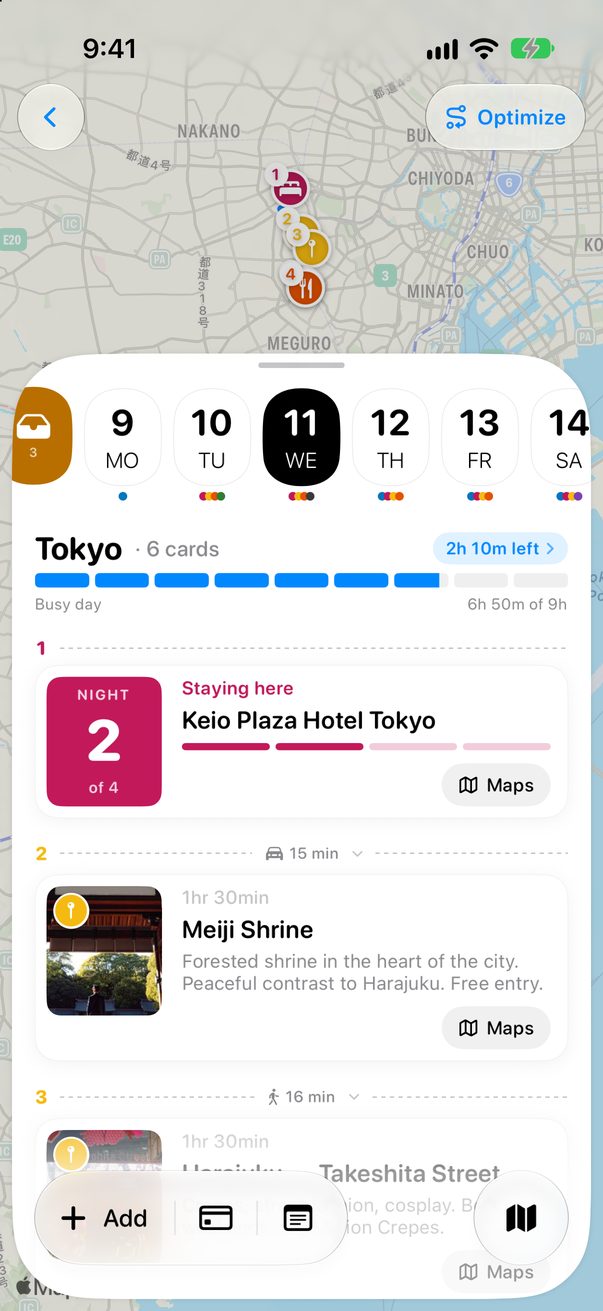
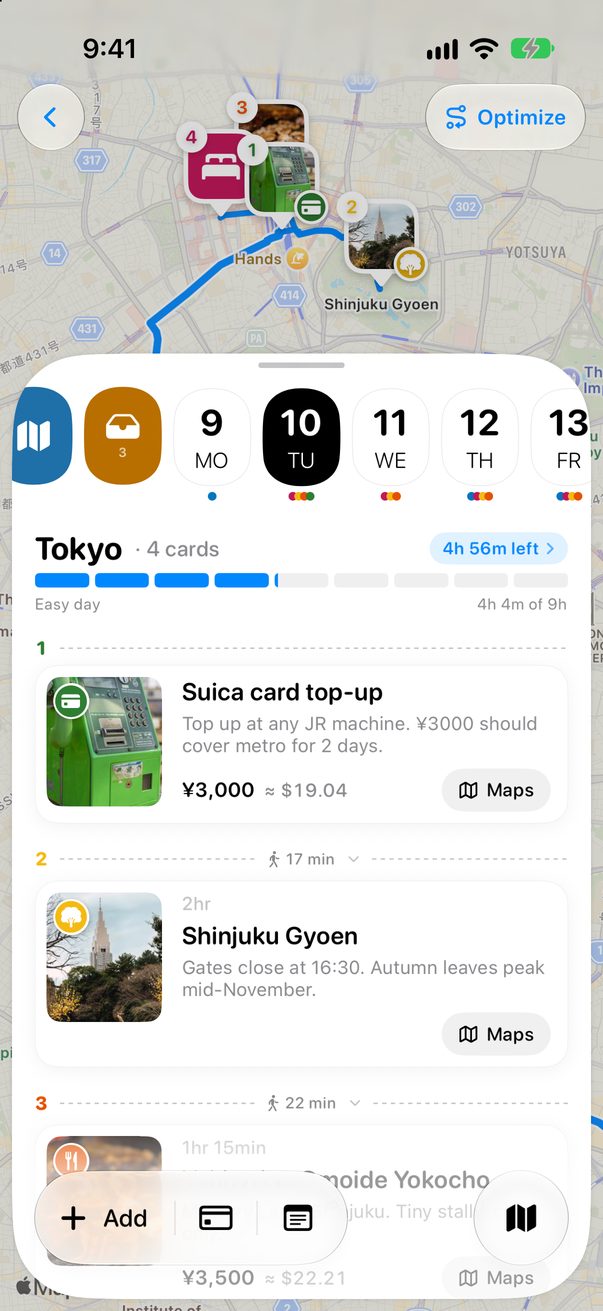
Every day adds up the time at each place and the time to get between them, and shows how much of your day it fills.
Read the bar
Under the day’s name, each block is one hour of your day. Easy day means at least half is still free, Busy day means less than half is. When it no longer fits, it says Doesn’t fit and the extra hours turn orange.
 1
2
3
4
1
2
3
4
What counts
The time at each place, in grey above its name, plus the time to get from one card to the next. Notes, expenses and hotel nights take no time.
 1
2
1
2
Set your own pace
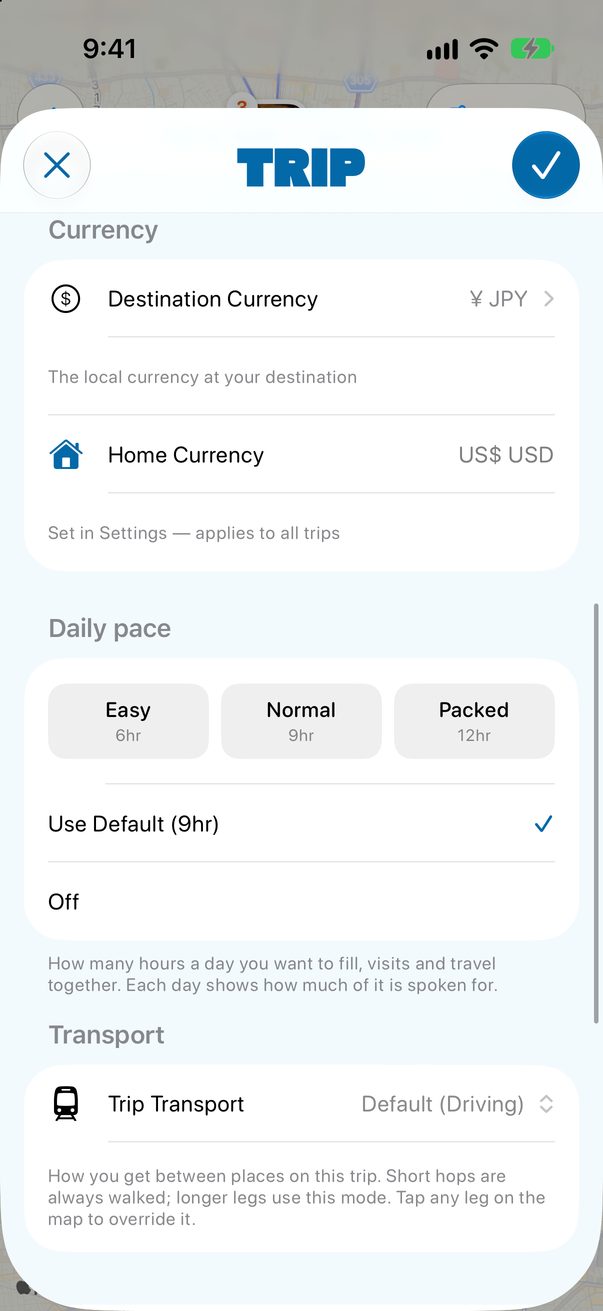
Tap the time left to open the trip’s settings. Pick Easy (6 hours), Normal (9) or Packed (12), or Off to hide the bar for this trip.
 1
2
1
2
The same bar on every column
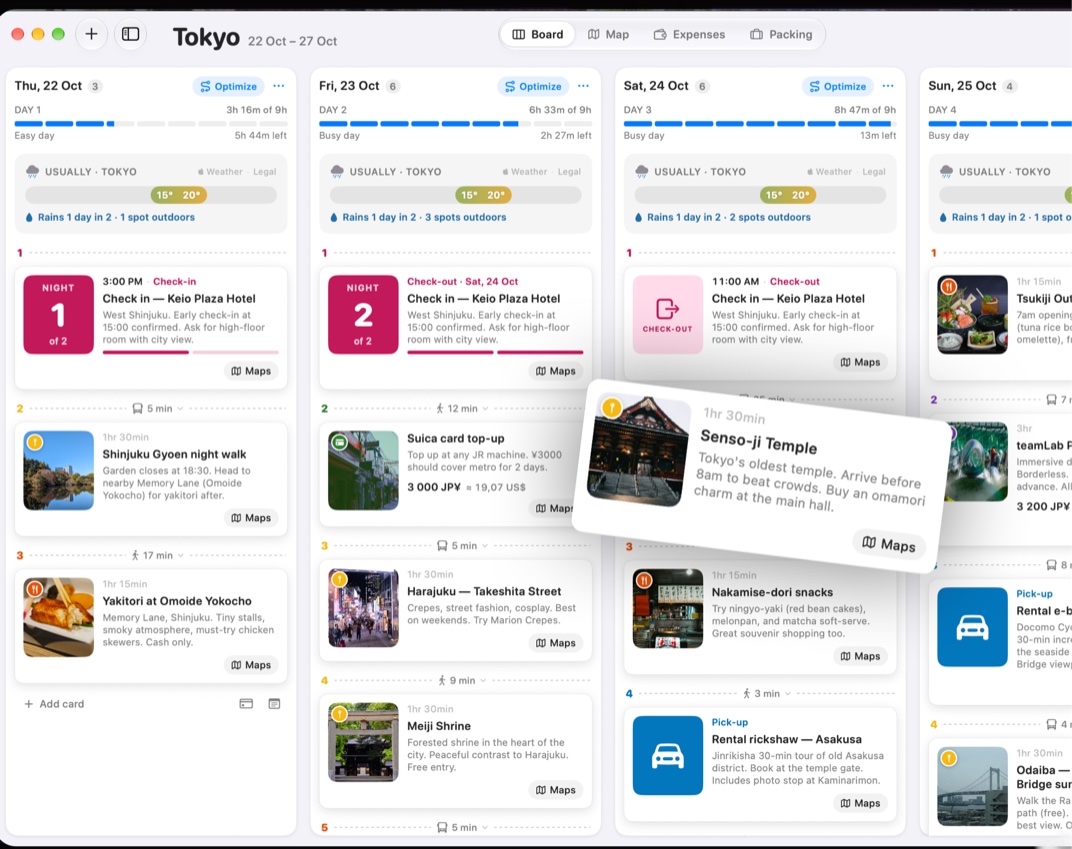
Each day’s column shows the same blocks, the time planned and the time left under its date.
 1
1
Good to know
Each kind of card has a usual length. To change one card’s, open it, tap the pencil and type the minutes next to the hourglass.
Short hops are always walked. Longer ones use the transport you set in the trip’s settings.



Was this helpful?
Great, thanks! Happy travels.
Sorry about that. Tell me what was missing on r/trovelo and I’ll fix this page.
Keep going