Optimize a day’s route
Optimize reorders a day so you walk or drive less. You see the distance saved before you keep it.
Tap Optimize
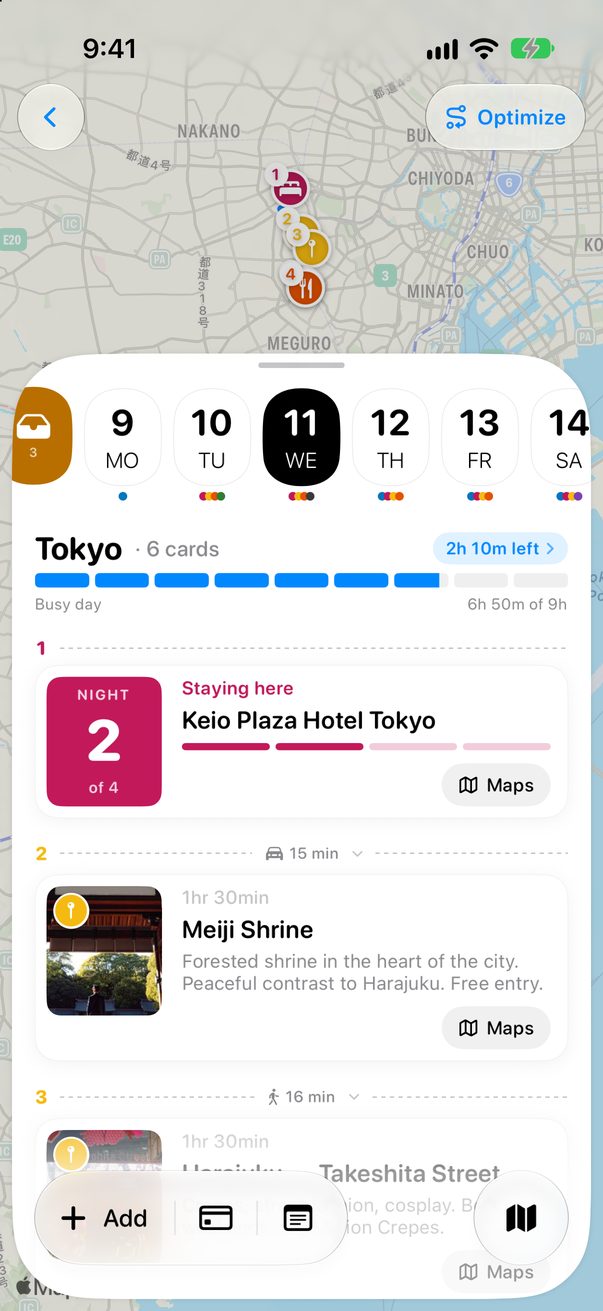
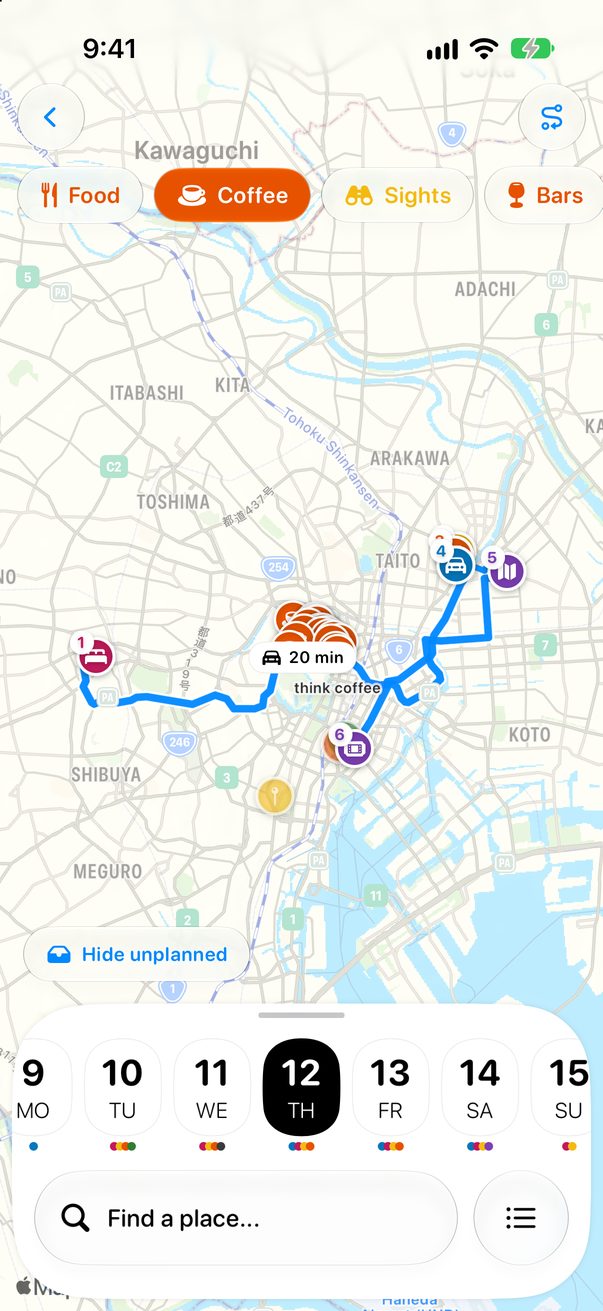
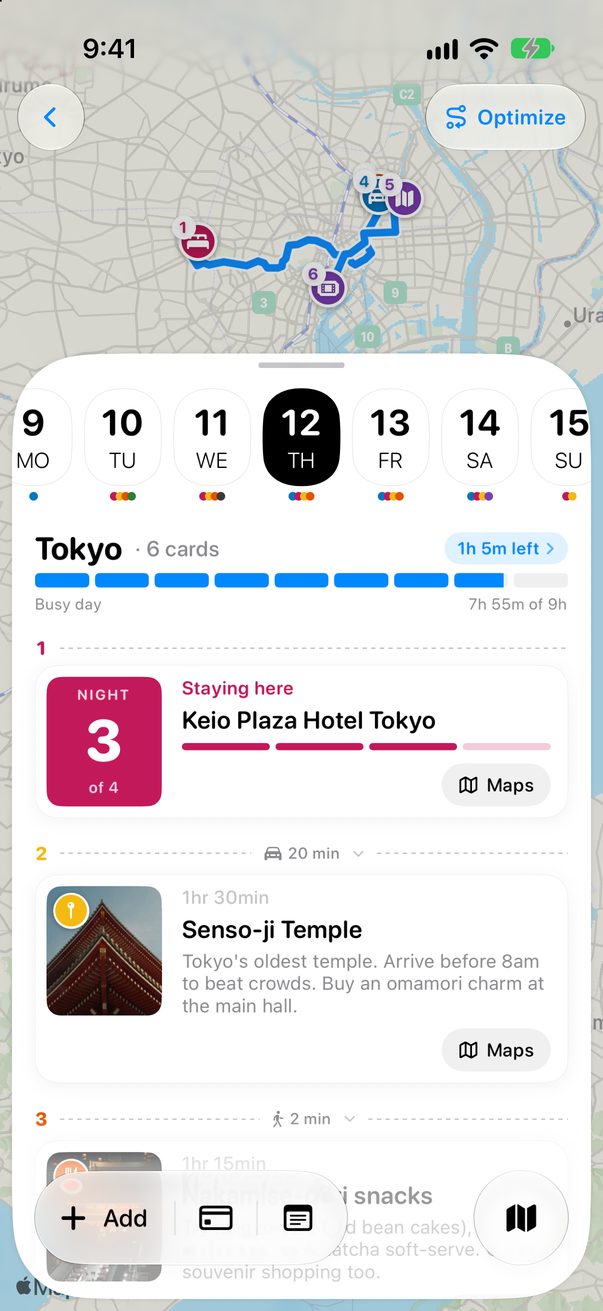
Open the day and tap Optimize at the top of the map. You see the day on a small map, numbered in its current order, with the distance.
 1
1
Let Trovelo reorder it
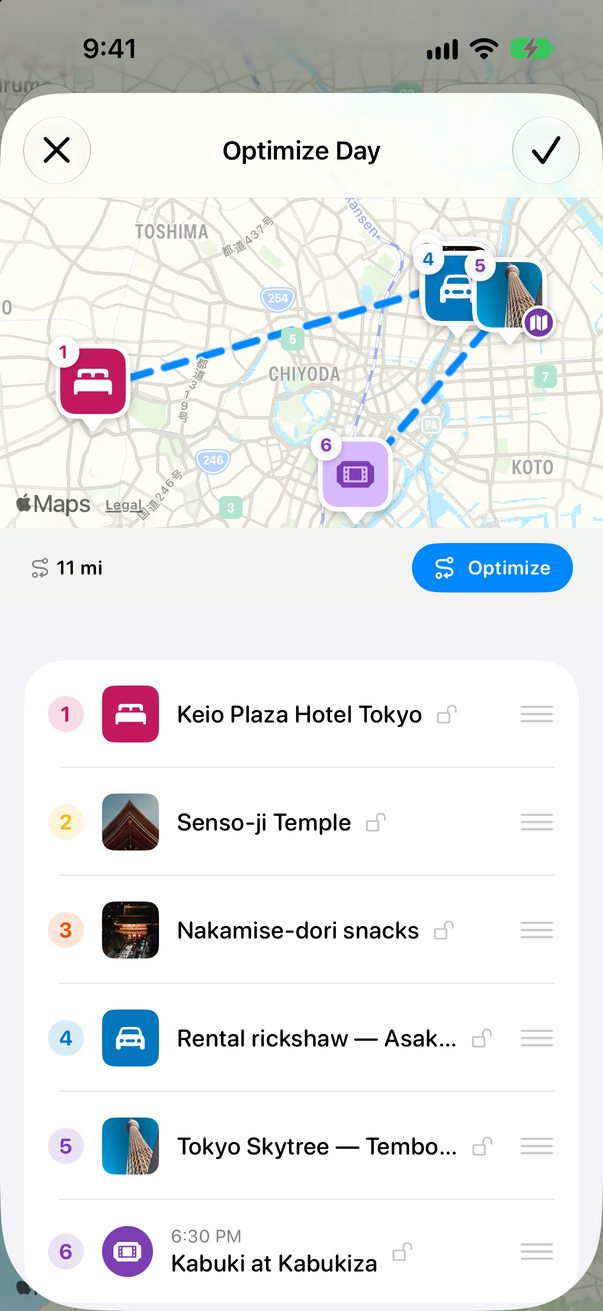
Tap Optimize again. The stops move into the shortest order, and you see the new distance and how much you saved.
 1
2
1
2
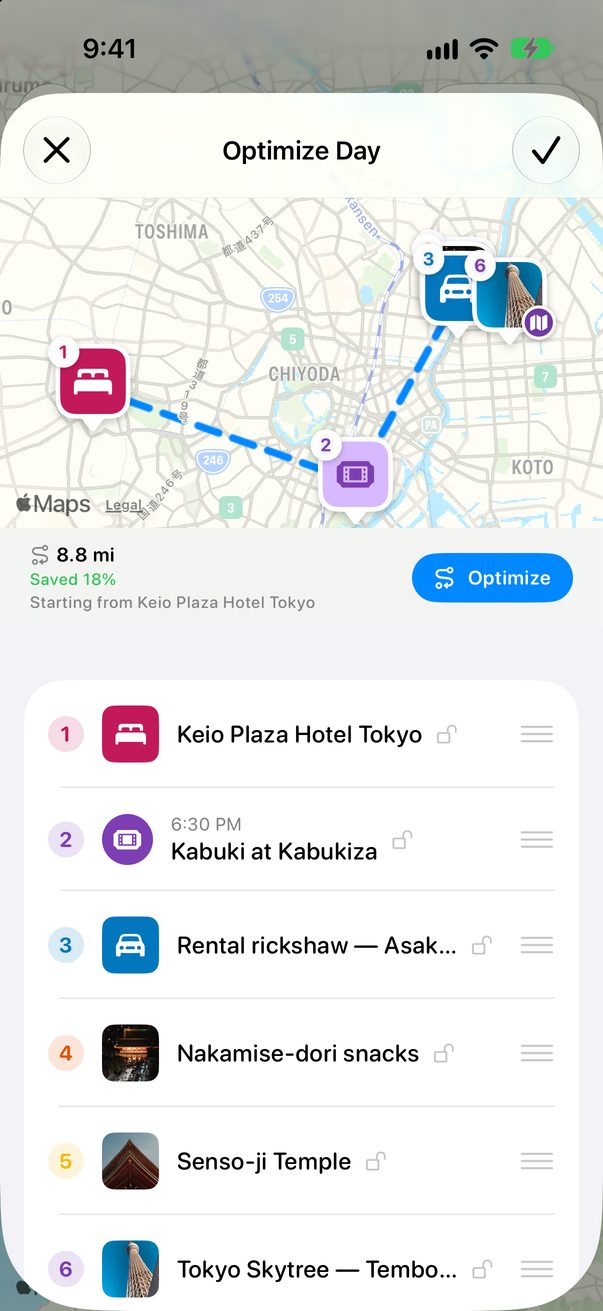 3
3
Lock what can’t move
Tap the padlock next to a card to keep it in its place. Flights, trains, shows and other cards with a set time start locked. Then tap ✓ to keep the order.
1
2
Optimize on the Mac
Each day’s column has its own Optimize button at the top.
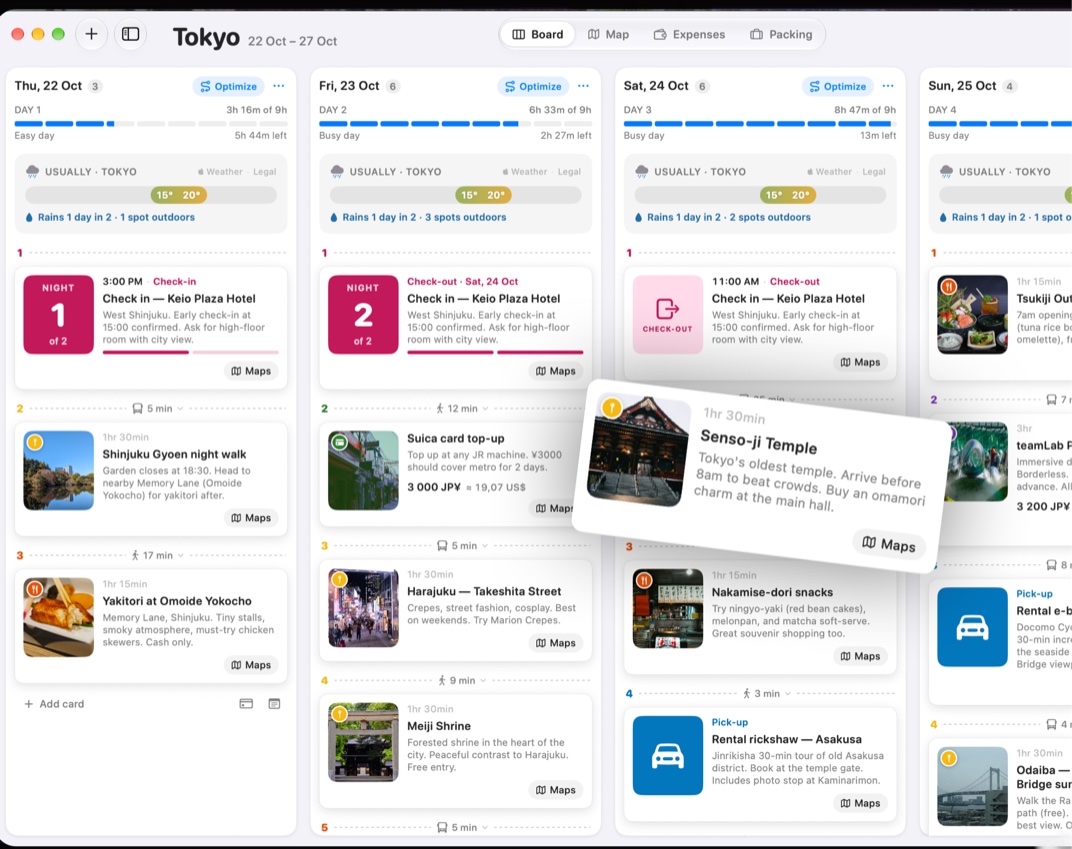 1
1
Good to know
The route starts where you are if you’re there today, or from the last stop you marked as done. Otherwise it starts at the hotel you wake up in.
Changed your mind? ✕ puts the day back exactly as it was.



Was this helpful?
Great, thanks! Happy travels.
Sorry about that. Tell me what was missing on r/trovelo and I’ll fix this page.
Keep going