Log an expense
A coffee, a taxi, a souvenir: log what you paid in a few seconds, without adding a card to your plan.
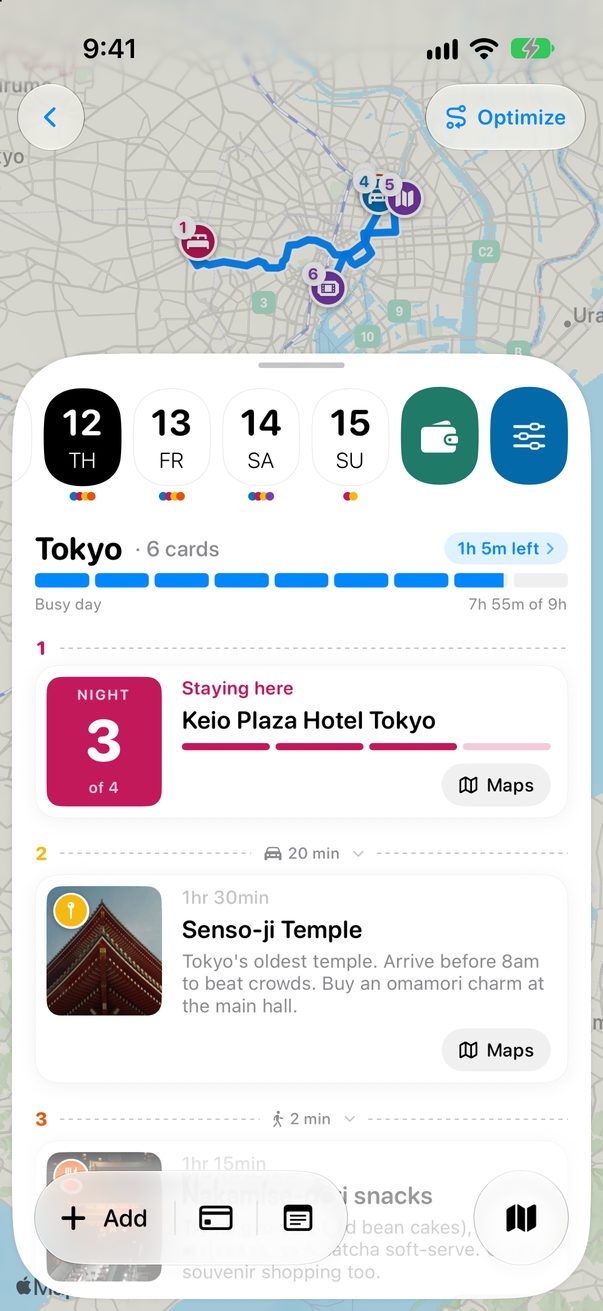
Tap the expense button
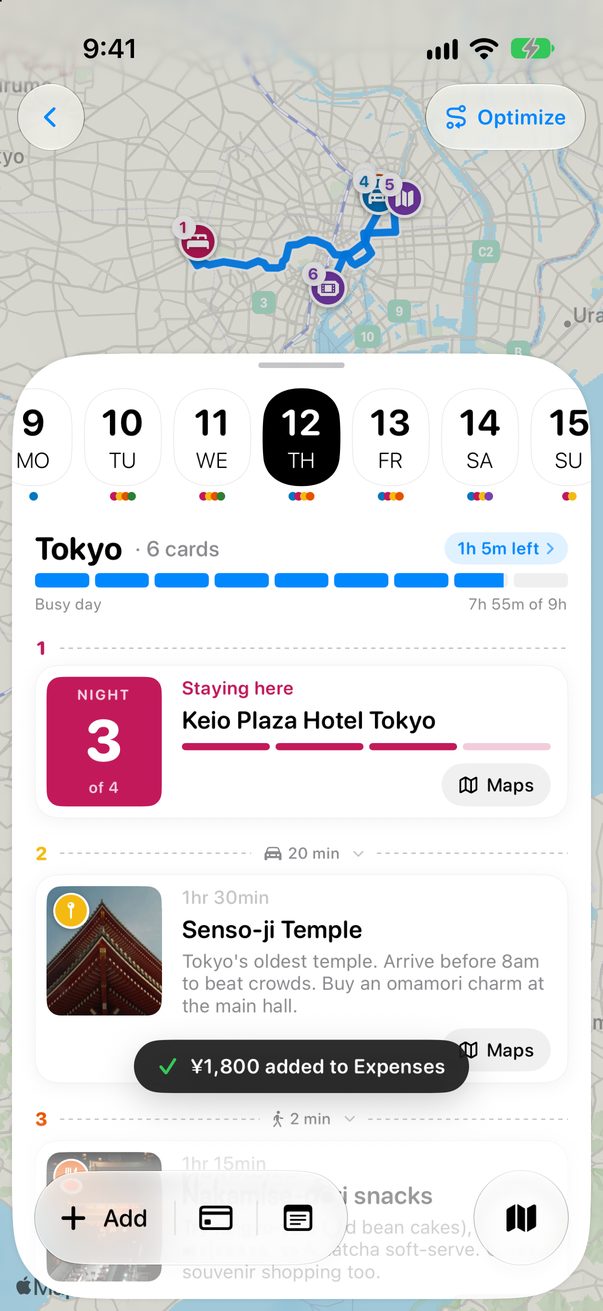
On the Board, tap the button next to + Add. Or open Expenses and tap + Log an expense.
 1
1
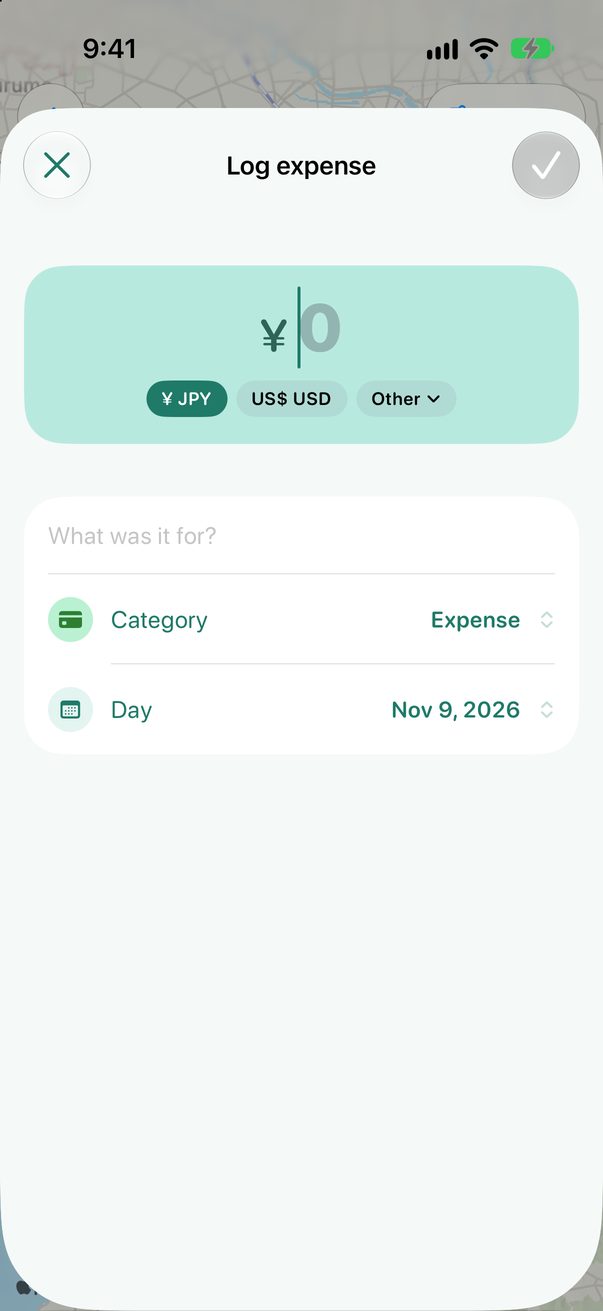
Type what you paid
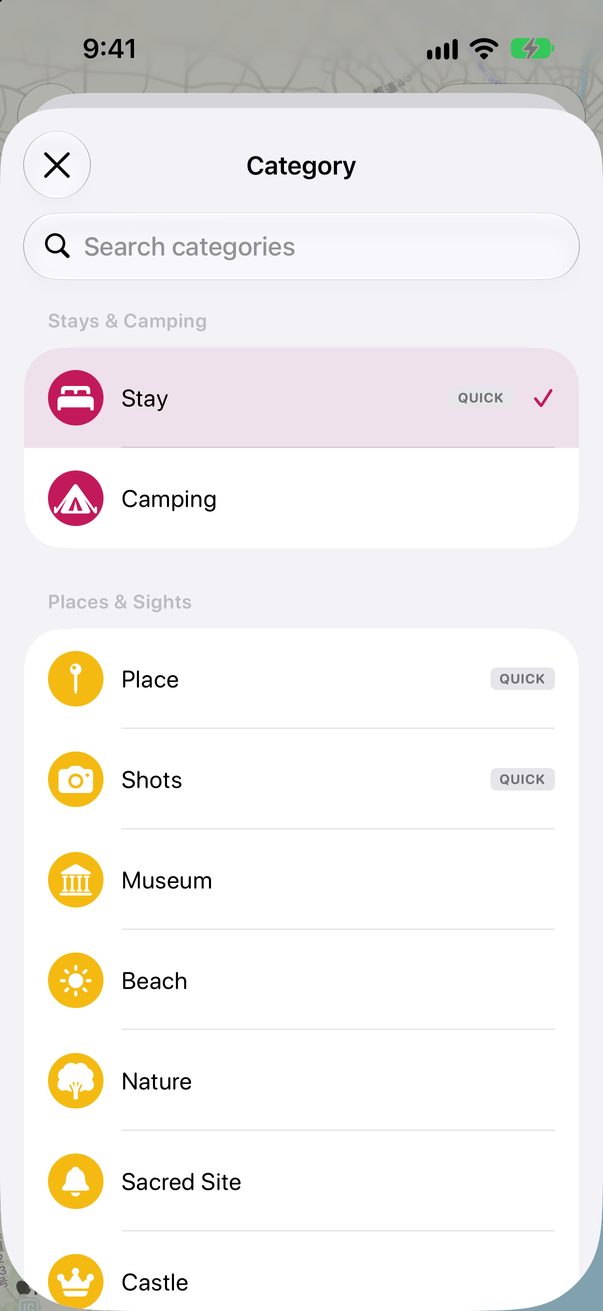
The amount comes first, in the trip’s currency. Paid in another one? Tap it. Then say what it was for, and change the category or the day if they’re not right.
 1
2
3
4
1
2
3
4
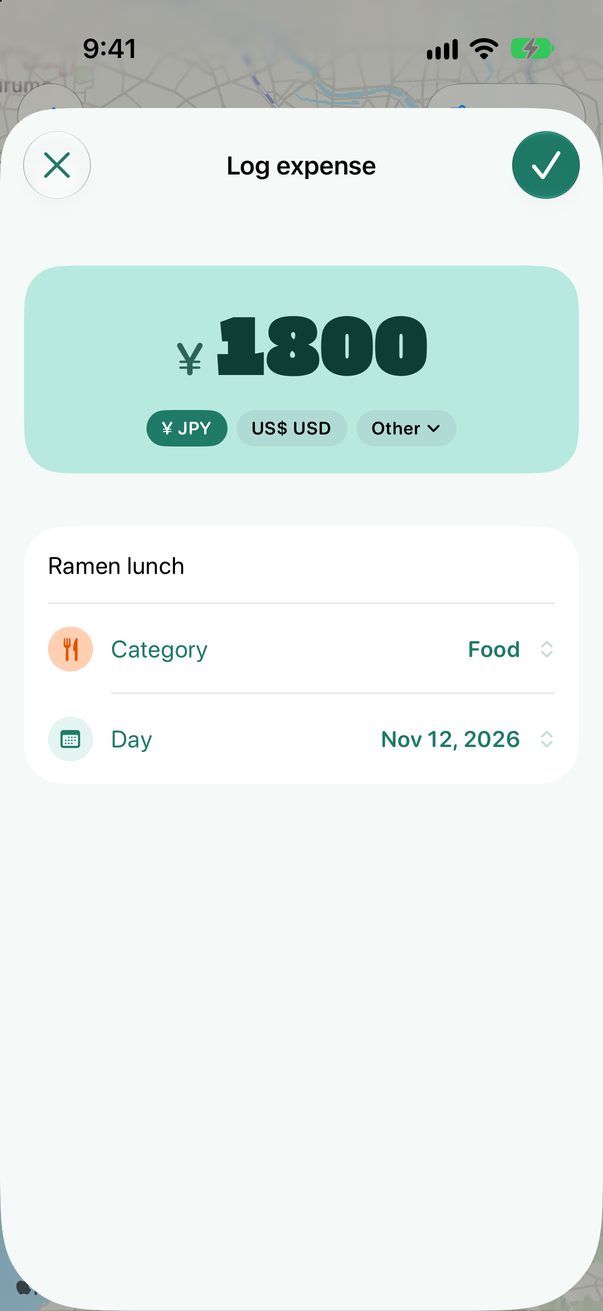
Save it
Tap ✓. It goes into your Expenses, and your day’s plan stays as it was.
 1
2
1
2
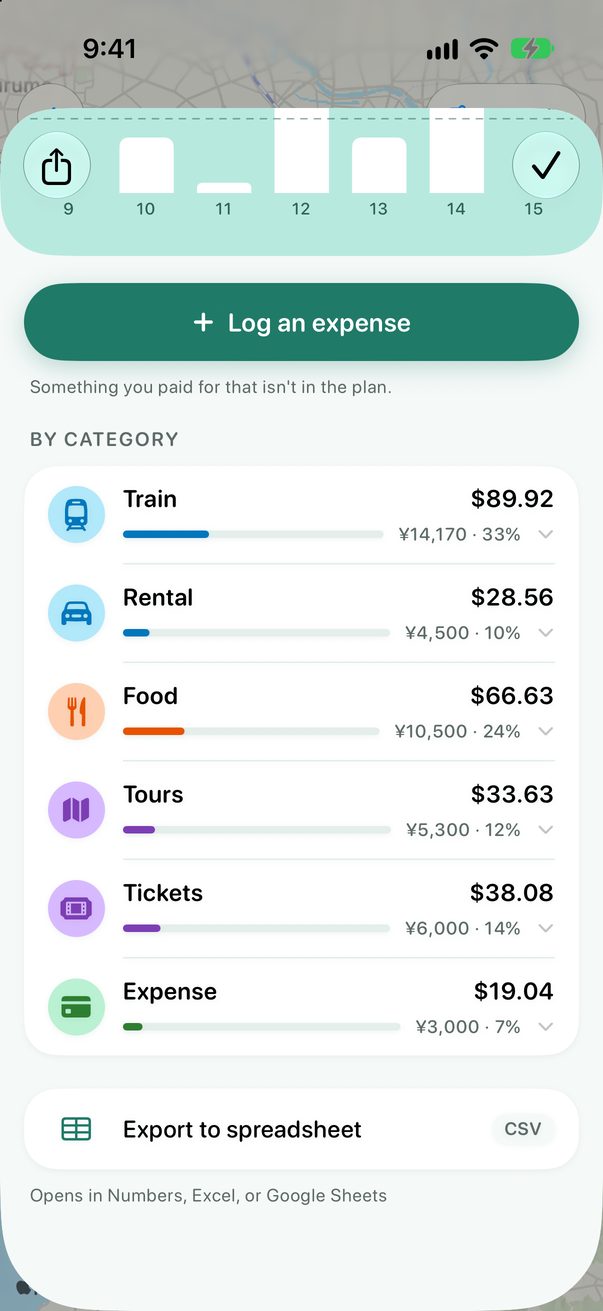
See where your money went
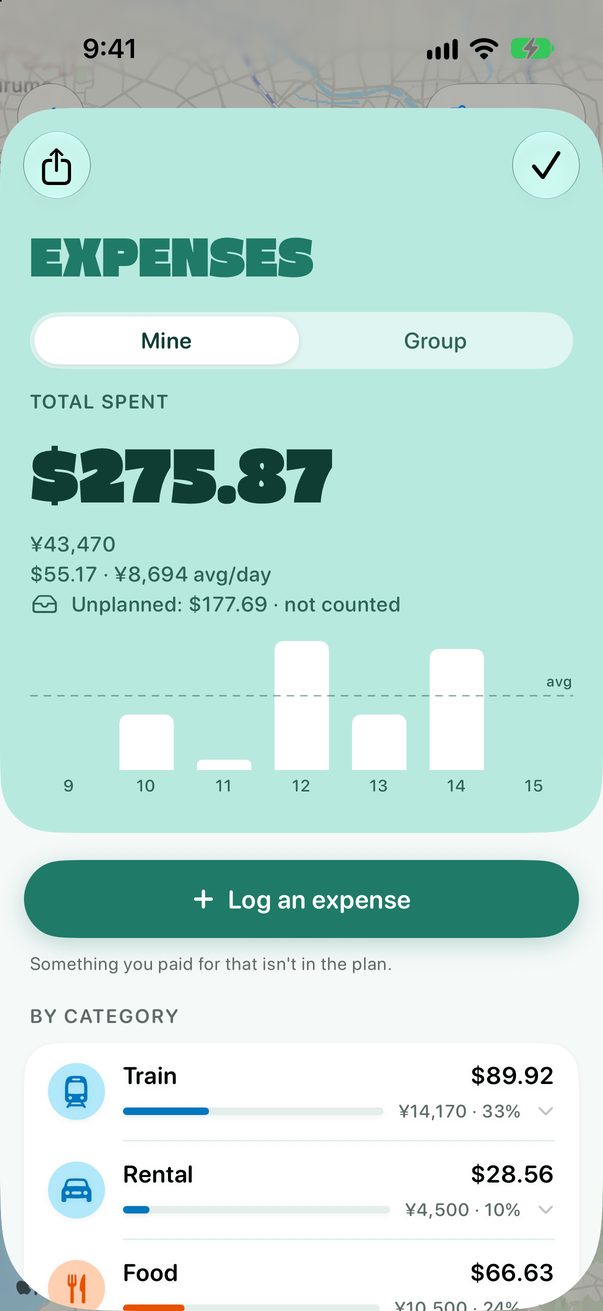
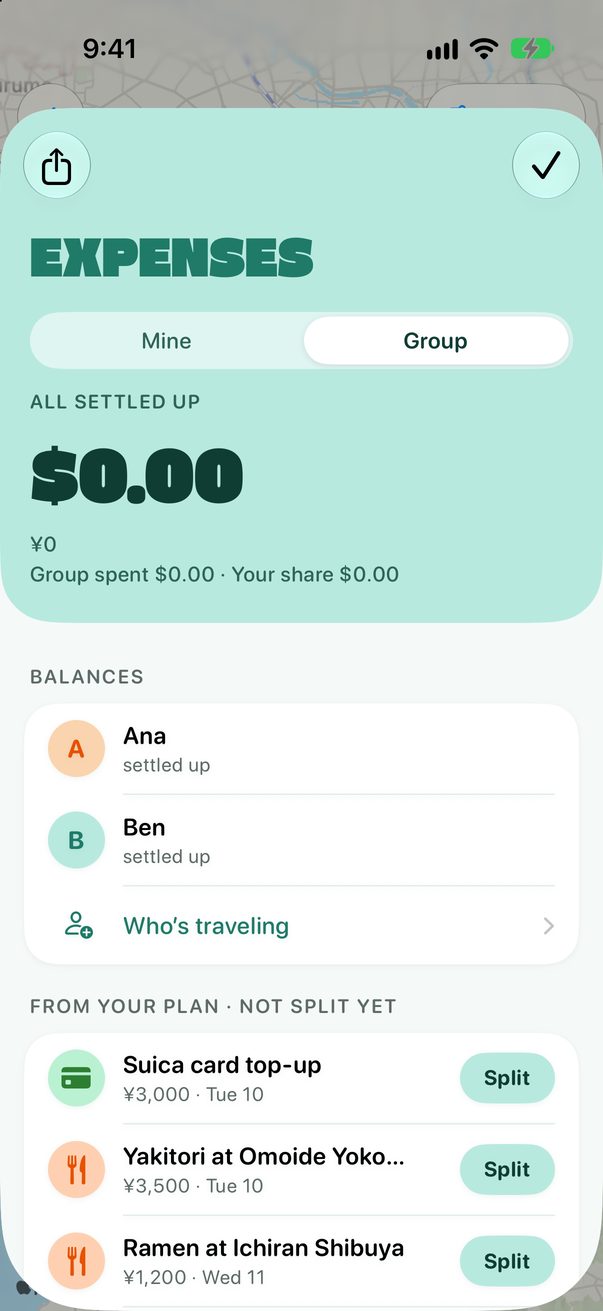
Open Expenses from the green wallet at the end of the strip of days. You see the total, each day and each category. Export to spreadsheet opens it in Numbers, Excel or Google Sheets.
 1
1
 2
3
2
3
On the Mac
Log an expense from anywhere, and open a trip’s Expenses with ⌘2.
Good to know
Prices you put on cards count too: the train, the museum, the dinner you booked.
Ideas in Unplanned with a price aren’t counted until they have a day.



Was this helpful?
Great, thanks! Happy travels.
Sorry about that. Tell me what was missing on r/trovelo and I’ll fix this page.
Keep going