Notes, files and photos
Keep the details where you’ll look for them: on the card itself, or as a note in the day.
Open the card
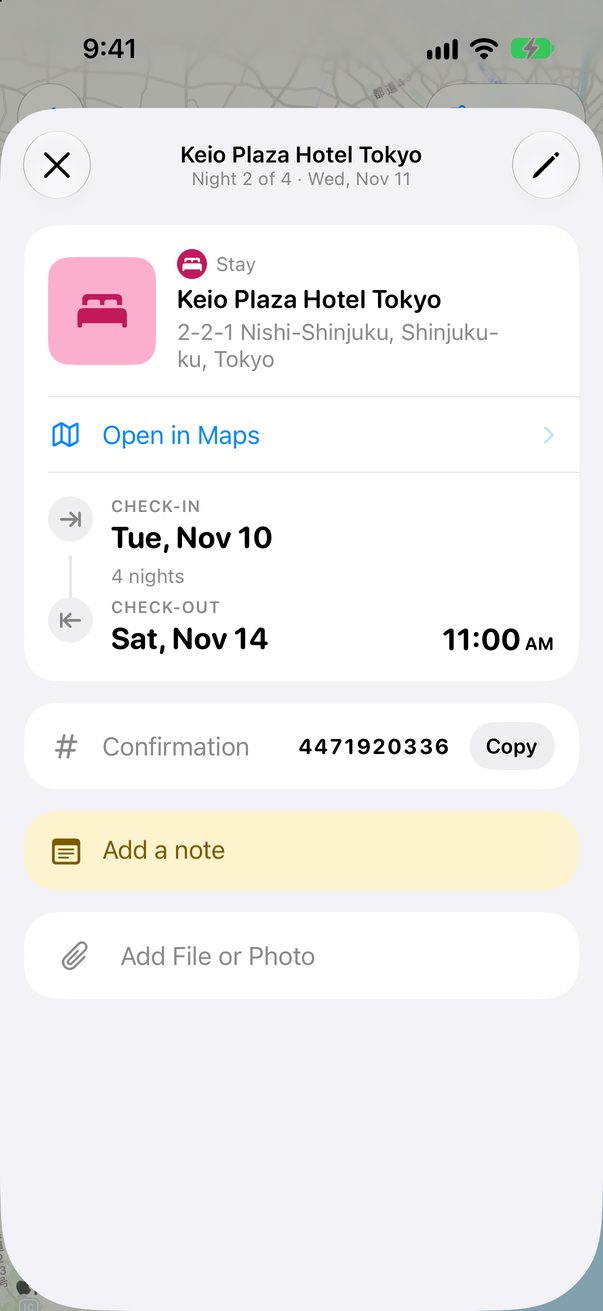
Tap any card on the Board. Under its details you’ll find Add a note and Add File or Photo.
 1
2
1
2
Take it from anywhere
Take a photo of a paper ticket, pick a PDF from Files or a screenshot from your Photo Library. It stays on the card.
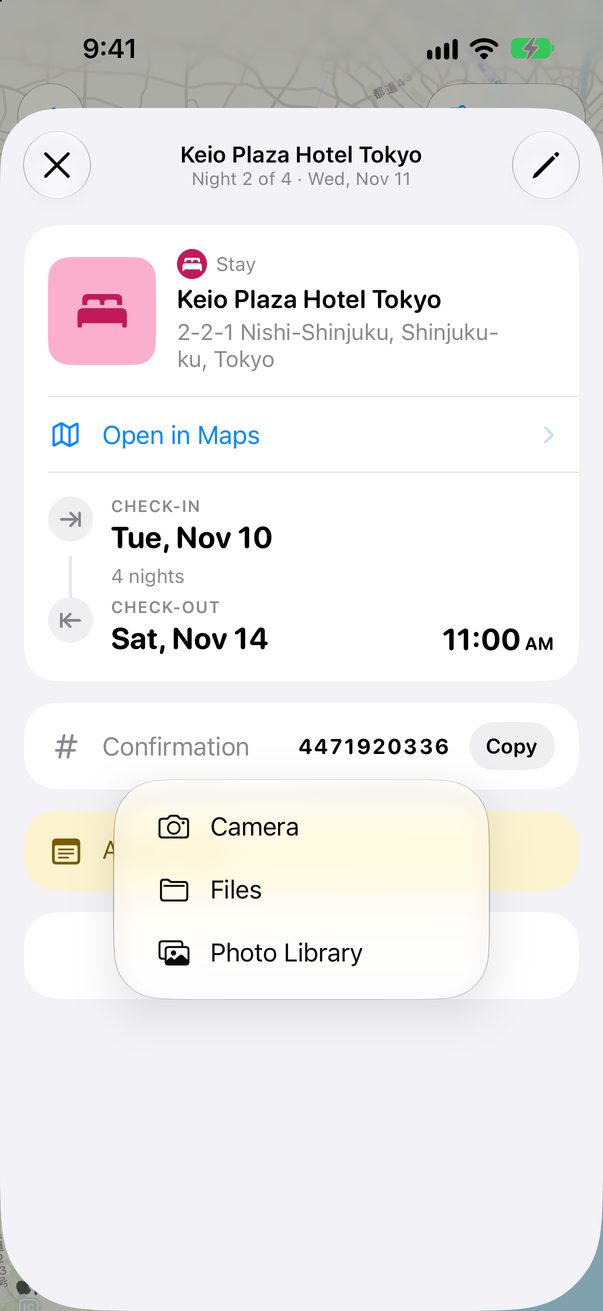 1
1
A note for the whole day
For something that isn’t a place, like Bring cash, tap the note button at the bottom. It becomes a yellow card in the day.
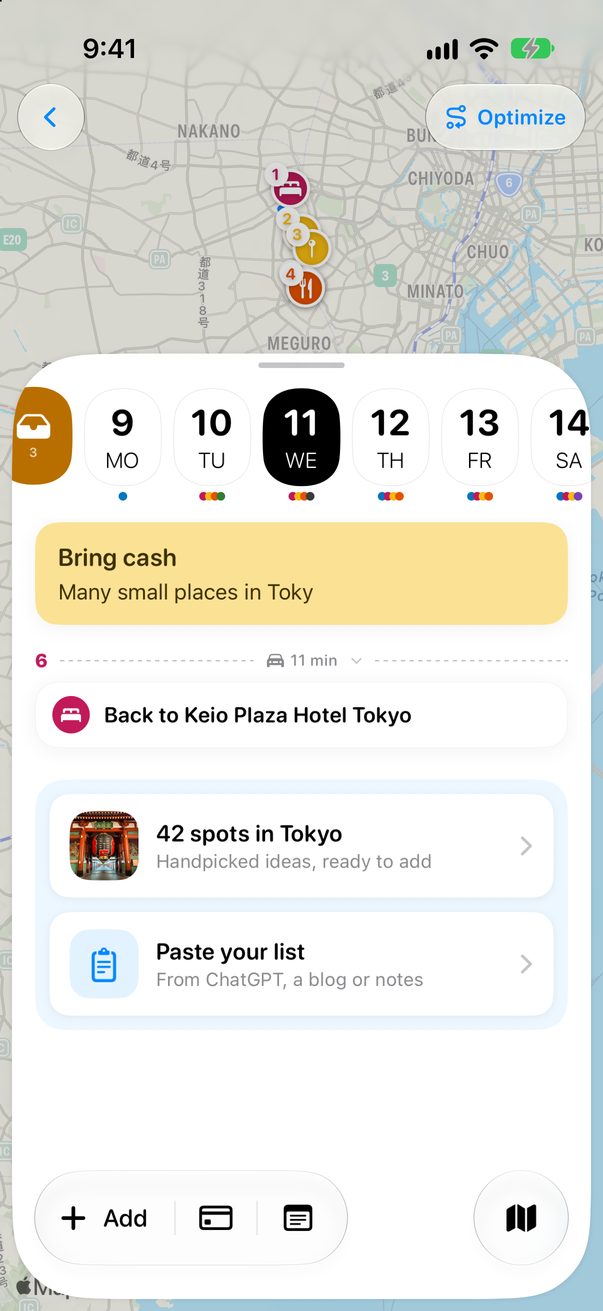 1
2
1
2
Notes and files on the Mac
Click a card to open it: its note and files are there too. For a note on the day, use the note button at the bottom of the day’s column, or the keyboard:
Good to know
Attach a ticket or a booking and Trovelo fills in its confirmation number when it finds one.
Files and photos sync to your other devices through your own iCloud.



Was this helpful?
Great, thanks! Happy travels.
Sorry about that. Tell me what was missing on r/trovelo and I’ll fix this page.
Keep going